Sunset drive


 8-BIT FILTER
**** SPENYX PRESENTS ****
Retro effects, rendered pixel by pixel.
Give your Android apps and camera photos a retro look with 8-Bit Filter by Spenyx. Pixelate your screen, apply Commodore 64, ZX Spectrum and Game Boy-style colours, or add a live CRT overlay with phosphor masks and scanline-style effects. Save a different look for each supported app.
Get 8-Bit Filter on Google Play8-bit screen filter for Android · CRT effect Android guide: compare masks and settings
8-Bit Filter · Android 15+ · Available now on Google Play
READY?
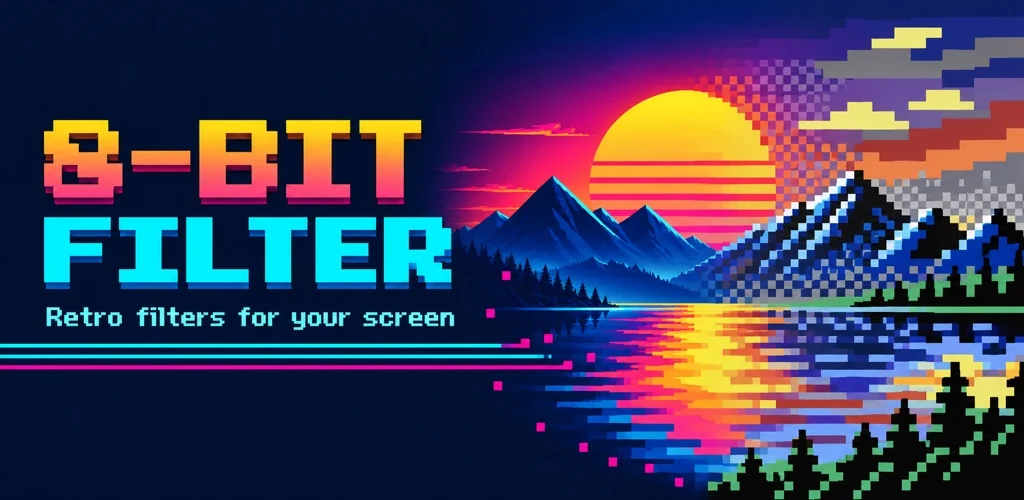
PIXELS IN MOTION
See the 8-bit shader turn the sunset drive and neon city into chunky pixels with retro colours. Pick a palette or let the sequence play.
Commodore 64 · 8× pixels · wide pixels · dithering on


Generated with 8-Bit Filter’s Android image processor using the same AI-generated photos as the app’s live preview. These are prepared examples, not live screen recordings; website transitions and zooms animate the exported images. Desktop examples represent a 3088-pixel-wide landscape phone screen, reduced to fit these cards. Mobile retains the original 1024-pixel-wide examples. Pixel settings are applied before resizing; their apparent size changes with the preview width. Actual results vary with content and settings. Motion can be paused; reduced-motion preferences are respected. Explore the pixel and sampling controls →
INSIDE THE CRT
See the CRT shader in action. Watch it recreate the red, green and blue phosphor patterns of vintage displays.
Emulated CRT · Aperture Grille · mask size 3 · native source detail


Generated with 8-Bit Filter’s Android image processor using the same AI-generated photos as the app’s live preview. These are prepared examples, not live screen recordings; website transitions and zooms animate the exported images. Desktop examples represent a landscape phone screen reduced to fit these cards; mobile keeps its original scale. Desktop close-ups use the full-resolution phosphor pattern without smoothing. Additional CRT choices require Pro. These refreshed exports include all five masks, Blooming High and Beam Shrink On examples; the baseline looks use both options Off. Motion can be paused; reduced-motion preferences are respected. Explore the CRT controls →
NEW CRT CONTROLS
Choose Off, Low, Medium or High. Blooming spreads light from bright phosphors into neighbouring pixels across all five CRT masks. Keep it Off for the unbloomed mask.
Switch Beam Shrink On to contract the illuminated dots, slots and stripes in darker image areas. Bright white keeps its full footprint; the mask grid stays in place.
Compare the untouched left half with the filtered right half. Tap the filtered half to inspect an exact 10×, nearest-neighbour close-up before saving your profile.
Explore the CRT effect Android settings → · Follow the illustrated CRT setup guide →
Available in the latest app build. If a control is missing, check Google Play for an update. Blooming adds GPU work when enabled; performance depends on the device and settings.
PIXEL-LEVEL IMAGE PROCESSING
8-Bit Filter captures supported screen content and processes the image pixel by pixel. Palette mapping, dithering and CRT phosphor rendering respond to the picture’s colours and brightness.
A transparent tint or fixed scanline texture sits over an unchanged picture. Here, the captured image is rendered into the selected palette or phosphor pattern. Blooming spreads light from bright phosphors; Beam Shrink contracts illuminated elements in darker areas. Curvature bends the picture itself.
An Android overlay displays the processed result while you continue using your apps. This is software image processing; it does not change your phone’s physical display panel. See how the CRT effect works →
PHONE / TABLET MODE · PRO
Carry a retro display style across supported screen content. Choose Subtle curvature for a gentle bend or Retro Bubble for the rounded look of an old tube screen.
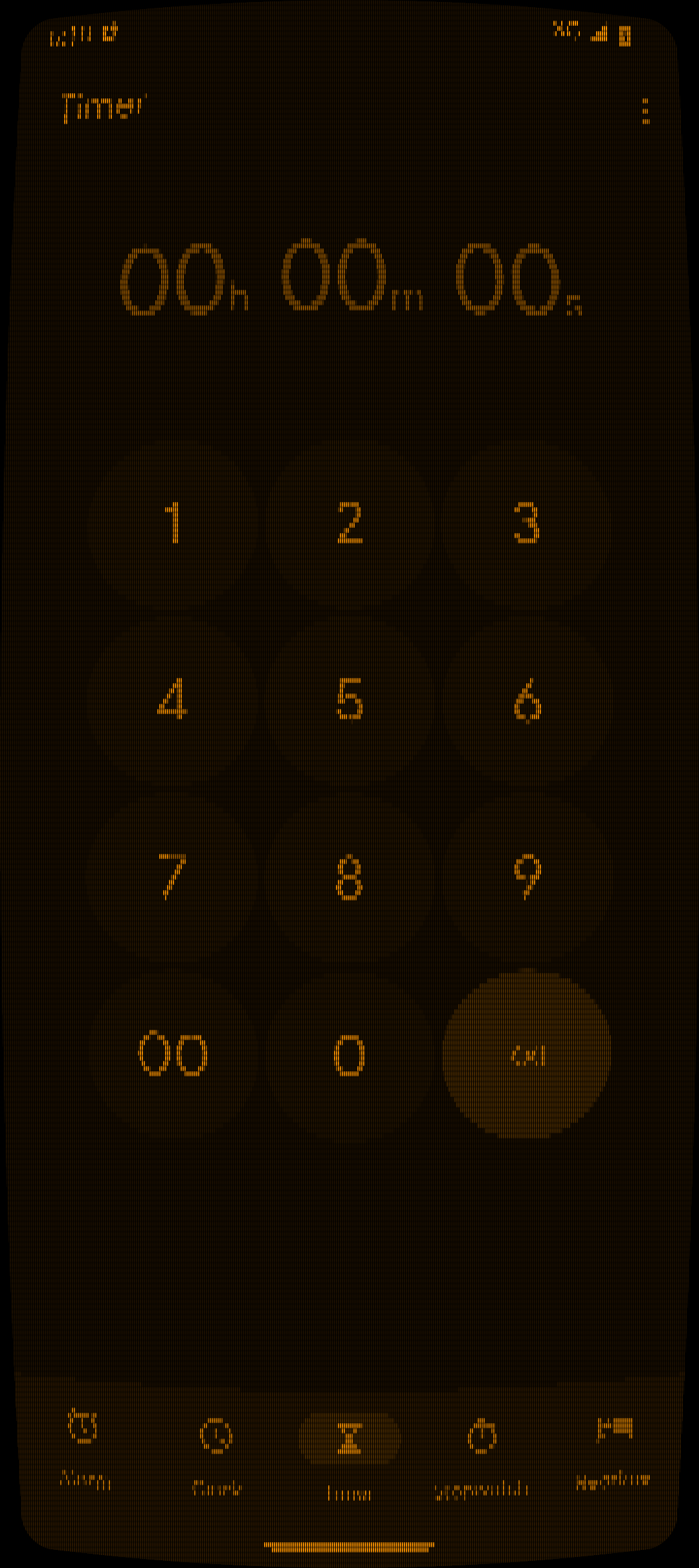
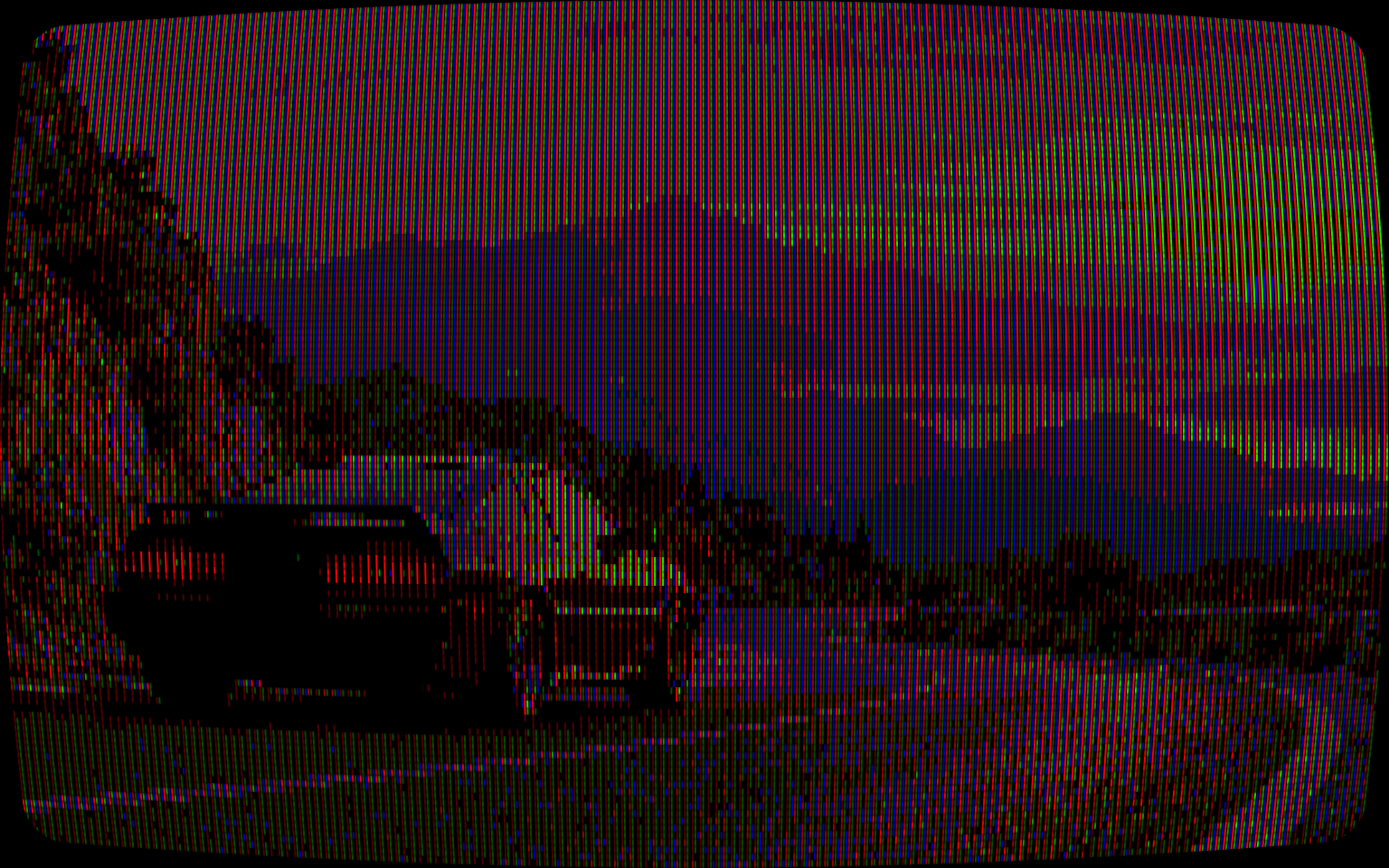
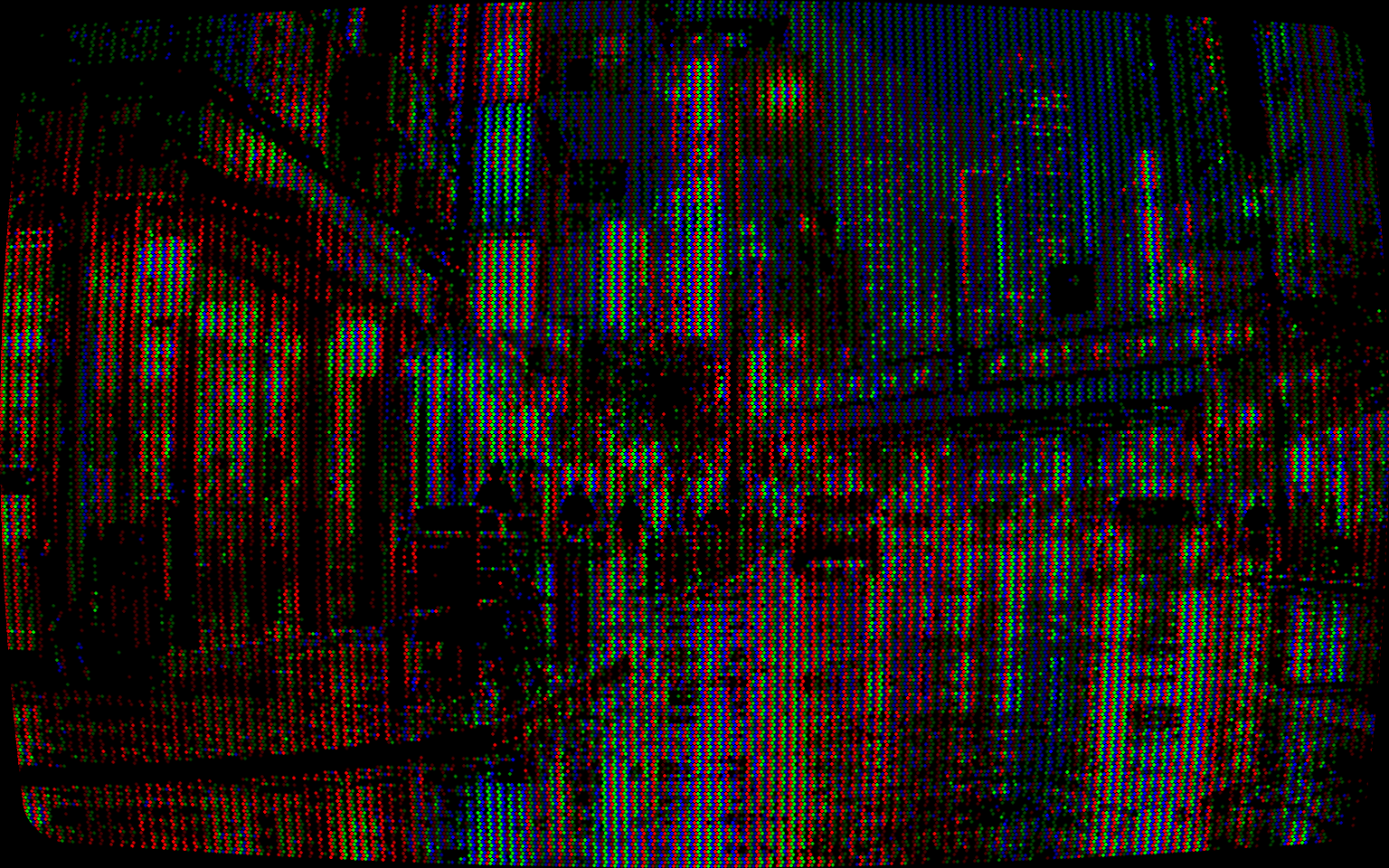
Keep one device-wide look, exclude apps you prefer to leave clear, or use optional per-app settings. Phone/Tablet Mode requires Pro; Android’s capture restrictions still apply.
The amber Clock example is exported from the current app’s Android image processor using an emulator capture. The sunset and neon scenes are the same AI-generated photos used in the app preview, with an additional whole-screen warp for these website illustrations so the picture and phosphor grid curve together. The current app curves the picture while keeping its phosphor grid fixed. Open an image to inspect the full-size version.
Set up Phone/Tablet Mode →PICK YOUR ERA
From green handheld tones to bold home-computer colours. Find your favourite mix of palette, pixel size and dithering.
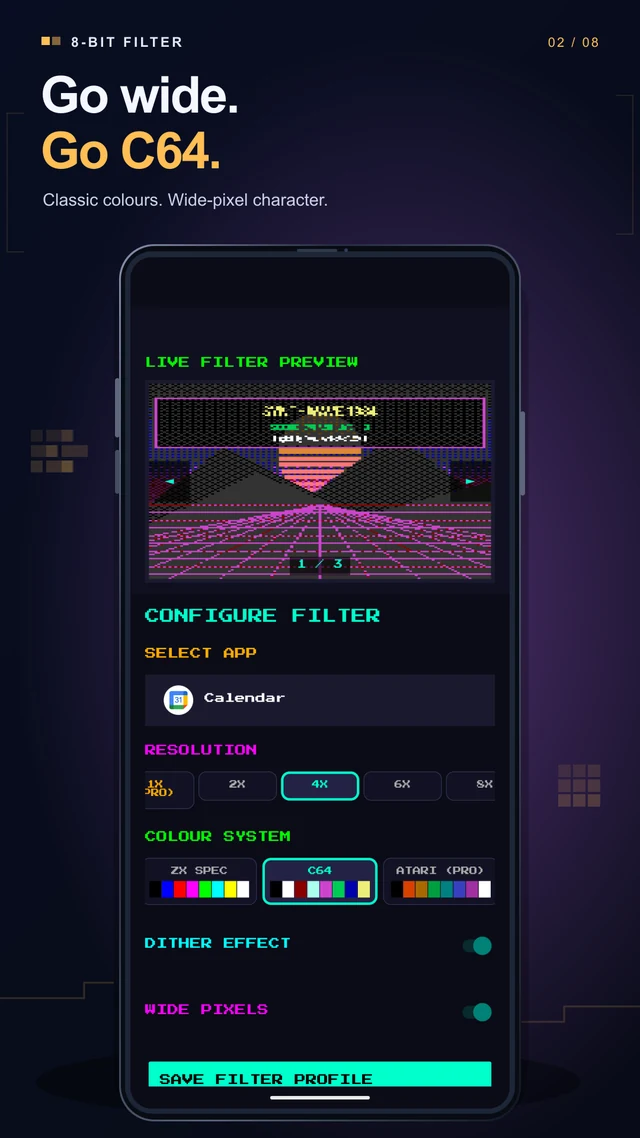
Commodore 64 colours, with optional wide pixels for that unmistakable retro look.
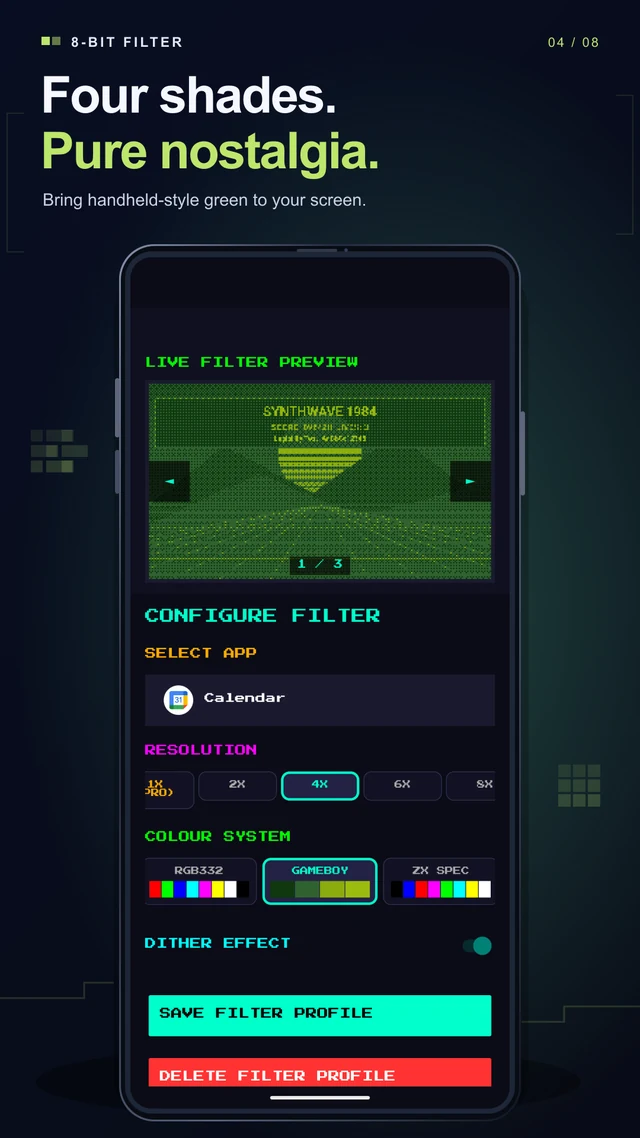
A Game Boy-style palette that gives your everyday apps a familiar handheld feel.
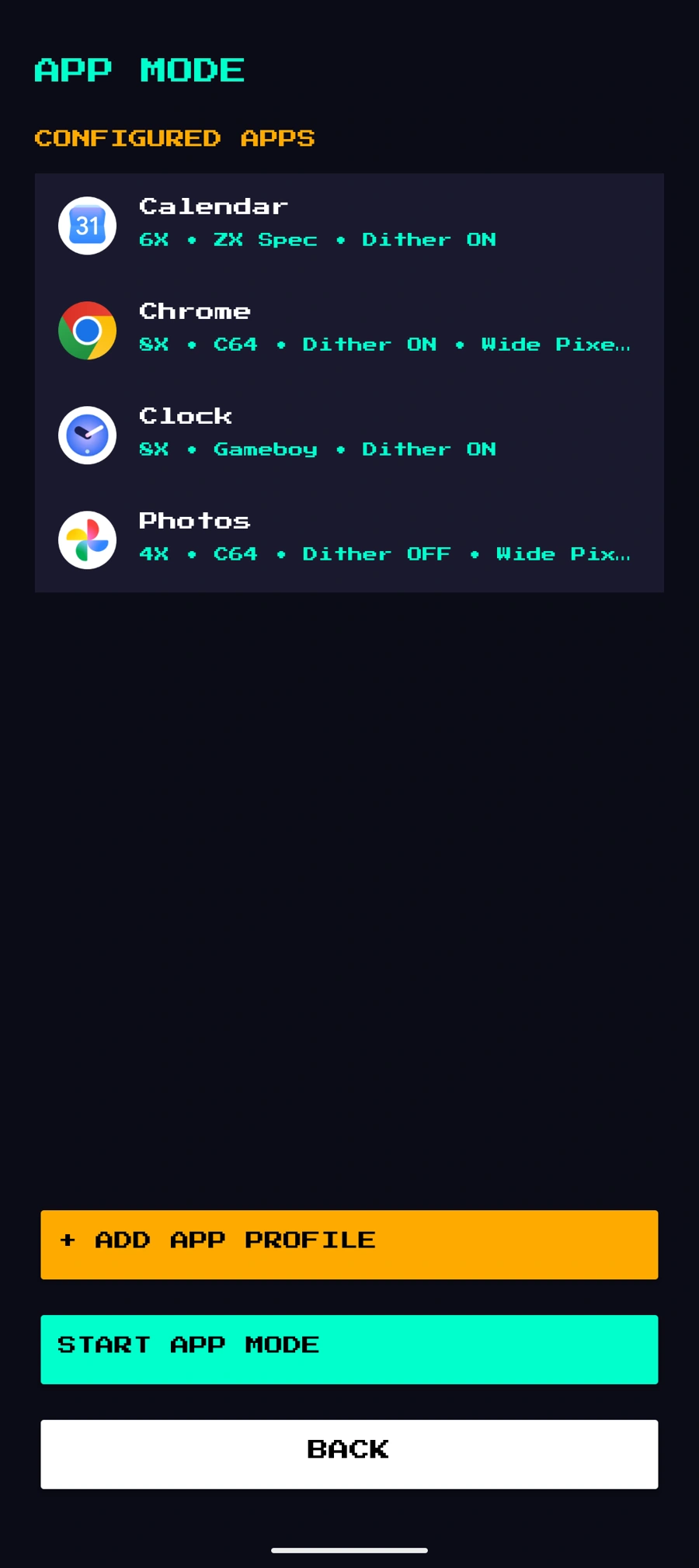
Save individual profiles and preview each combination before you apply it.
RGB332 · Game Boy-style green · ZX Spectrum · Commodore 64 · Atari 800XL (PRO) · CGA 4-Colour (PRO) · CGA 16-Colour (PRO) · Monochrome Custom Palette (PRO) · MSX (PRO)
TAKE FILTERED PHOTO · PRO
Take a new photo with your camera app, then save it with your 8-Bit Filter look.
Launch the camera from Take filtered photo in 8-Bit Filter, use an 8-Bit Camera home-screen shortcut, or long-press the app icon. On compatible devices, see a filtered live preview while you compose.
This Pro feature uses the camera’s supplied output file, so it does not need broad access to your photo library. Opening the camera’s normal launcher icon does not activate this camera filter.
Saved photos have a longest edge of up to 2048 pixels. Preview and camera compatibility vary by device.
Follow the filtered camera photo guide →
Get 8-Bit Filter · Pro available in-app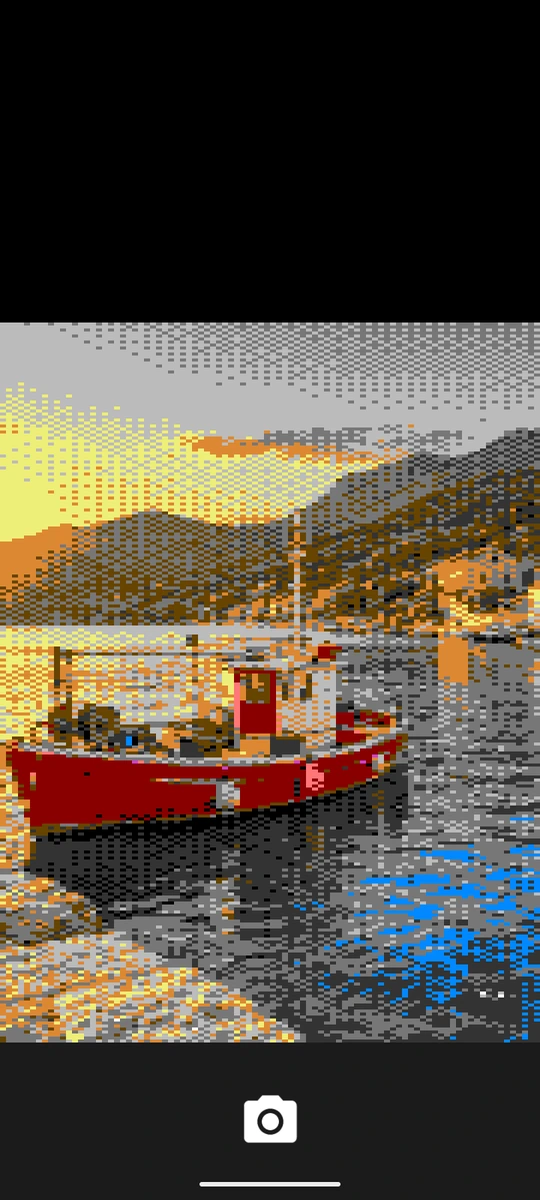
MAKE IT YOURS
Pixelate your Android screen with adjustable chunky blocks, then add optional dithering for a textured, old-school finish. Save a different combination for each supported app.
Toggle the effect from its notification. Adjust your saved profiles whenever you want, with setup guidance in the app.
Choose from five CRT masks: Aperture Grille, Shadow Mask, Slot Mask, Arcade CRT and Soft TV. Fine-tune the glow with Blooming, contract dim phosphors with Beam Shrink, and inspect the result in the 10× lens. Compare the CRT renderers and settings.
FIND YOUR LEVEL
FREE
Ads appear inside 8-Bit Filter’s own screens, never in the filter overlay or over other apps.
PRO · IN-APP PURCHASE
THE INSTRUCTION MANUAL
Set up permissions, save your first profile, understand every CRT control and solve common problems.
Read the user guide →BEYOND PHOTO EDITING
An 8 bit screen filter changes the look of supported Android apps as you use them. 8-Bit Filter processes captured screen pixels and displays the rendered picture in an Android overlay, with palette, pixel and CRT effects driven by the image.
Give a game, photo viewer or another supported app its own look. App Mode follows the app window instead of applying the same treatment to the surrounding screen. On supported devices, multiple floating or split-screen apps can each use a different saved profile.
See App Mode and floating windows →Apply a device-wide style, exclude apps you prefer to leave clear, or use optional per-app settings. Phone/Tablet Mode is a Pro feature. Secure content remains subject to Android’s capture restrictions.
Set up Phone/Tablet Mode →Choose a palette and pixel size, inspect the live preview, save an app profile and approve Android’s screen-sharing request. The free version includes two app-profile slots.
Follow the setup guide →GOOD TO KNOW
The current version requires Android 15 or later. Performance varies by device, app and filter settings.
8-Bit Filter uses Android screen capture to process the visible screen locally and display the effect. Android normally asks for screen-sharing approval when you start a new capture session.
The app uses AccessibilityService to detect the current app and display the filter overlay.
Protected content, lock screens and other Android-restricted apps do not support capture. Supported split-screen, floating and picture-in-picture windows can use separate saved filters. The overlay may briefly become transparent during rotation while a correctly sized frame arrives.
With Pro, launch the camera using Take filtered photo in 8-Bit Filter or its camera shortcut. Take the photo and confirm it to save a filtered copy. A camera opened from its usual launcher icon does not activate this filter. Read the camera guide.
GET IN TOUCH
Tell us what you’d like to see, or what isn’t working as expected.
Email us at support@spenyx.dev.
Reporting a problem? Include your device model, Android version and the steps that led to it. Please leave out passwords and other sensitive information.
YOUR NEXT RETRO OBSESSION
Available now for Android 15 and later.