
What is an 8-bit screen filter?
An 8-bit screen filter gives the visible content of supported Android apps a retro appearance. 8-Bit Filter combines chunky pixels, limited colour palettes, optional dithering and CRT-style effects. It processes captured display content locally and places the result over the original app.
This is different from opening one photograph in an editor. You can keep using a supported game, photo viewer or other app while its window has the saved retro look. The overlay does not rewrite that app’s images, menus or files. Website comparisons illustrate the visual styles; actual results depend on the app, device and selected settings.
Pixel-level effects: 8-Bit Filter processes captured screen pixels. Palettes remap image colours, dithering builds tonal patterns, and CRT rendering shapes the phosphor elements from the picture. The Android overlay displays this processed result; it is more than a transparent tint or fixed grid. Explore the pixel-level CRT rendering, including curved Phone/Tablet Mode examples.
App Mode: a style for each app window
App Mode applies a saved filter to the selected app’s window. The surrounding screen and system bars do not receive that app’s filter. Choose one palette for a game and another for a photo viewer, then return to those apps without rebuilding the settings each time.
On devices and apps that support split-screen, freeform or picture-in-picture windows, several visible app windows can use separate profiles at the same time. That does not enable floating windows on a phone that does not support them. With Pro, you can also take filtered camera photos by launching the camera through 8-Bit Filter or its shortcut.
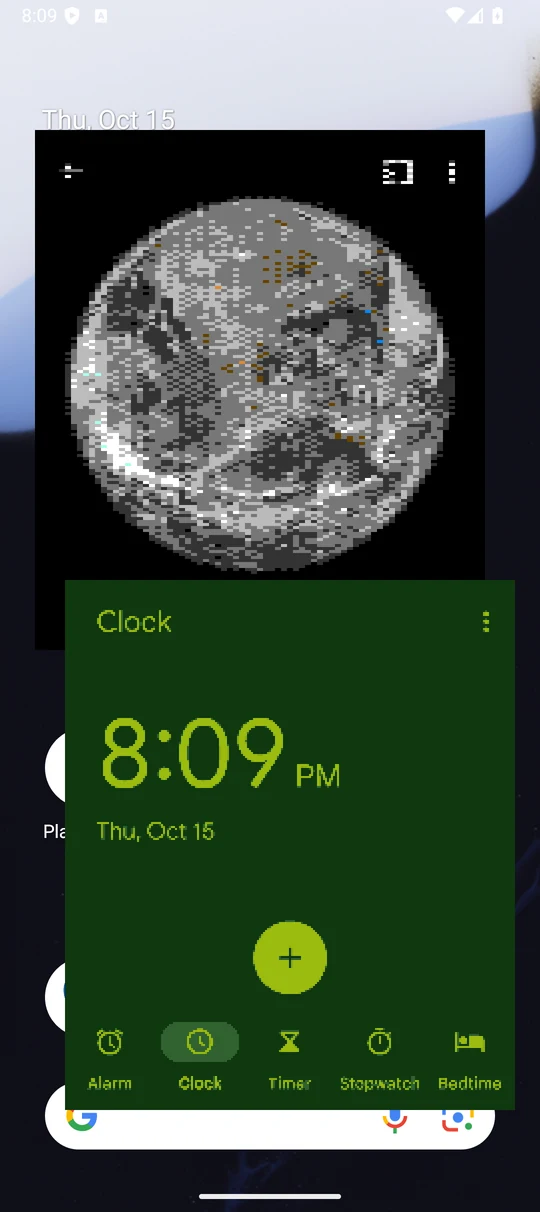
The free app includes two app-profile slots. Pro adds more profiles and Phone/Tablet Mode. In that mode, a device-wide default can be combined with app exclusions and optional saved per-app styles. Compare device-wide mode and exclusions.
Pixelate your Android screen with a classic palette
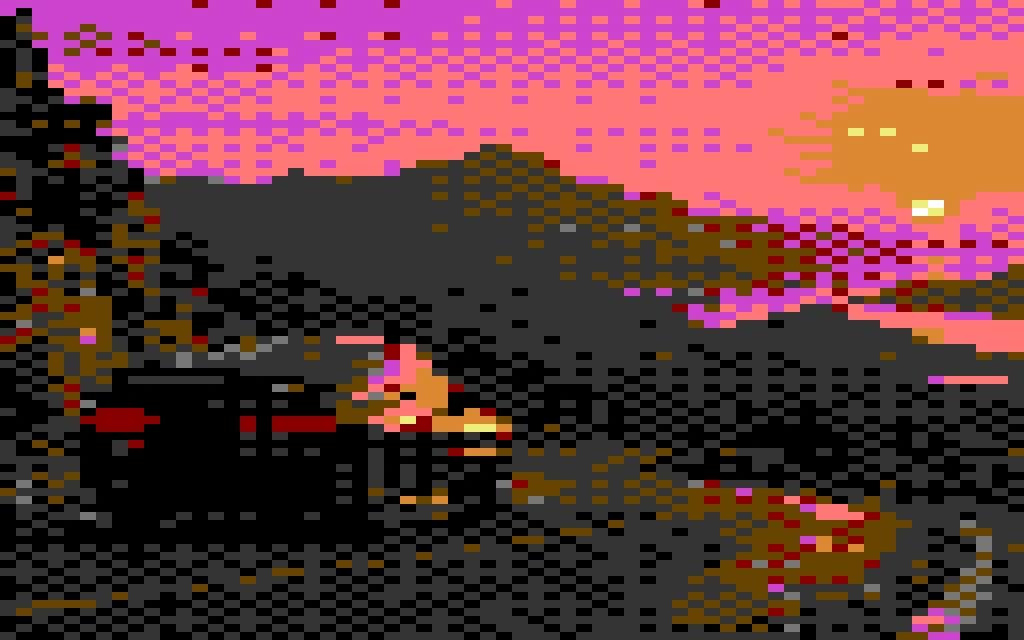
Pixel size controls how chunky the result looks. Smaller blocks retain more detail for text and icons; larger blocks create a more obvious pixel-art appearance. Try a modest setting in the live preview first, then check whether your chosen app remains comfortable to use.
- Game Boy-style green: a small set of green tones for a handheld-inspired display.
- Commodore 64: home-computer colours with optional wide pixels.
- ZX Spectrum: a bold limited palette, alongside the RGB332 colour option.
- Optional dithering: patterned transitions that suggest extra tones within a limited palette.
Pro adds Atari 800XL, CGA 4-Colour, CGA 16-Colour, Monochrome Custom Palette and MSX. MSX uses the 15 visible colours of an MSX1-style palette and is included in the upcoming app update. See all Colour System choices in the user guide. An Android retro screen filter is a visual treatment, not an emulator of those computers or their games.
For stripes, phosphor dots and curved-screen styling instead of ordinary chunky pixels, see the CRT screen filter guide.


How to apply a filter
- Install 8-Bit Filter from Google Play on a compatible device.
- Read the in-app introduction and enable the requested accessibility and overlay access.
- Open App Mode, add the app you want to style and choose its palette and pixel size.
- Use the live filter preview, save your profile and start App Mode.
- Approve Android’s screen-sharing request. When offered a choice, share the entire screen so the filter can follow supported app windows.
Use the notification to control the filter. The permissions section of the user guide explains why Android asks for capture access and what to check if the overlay is missing. You can change or stop the effect without changing the underlying app’s files.
Compatibility and everyday use
8-Bit Filter requires Android 15 or later. Protected video, secure windows and some apps cannot be captured. Accessibility window information and multi-window support vary by device; the overlay cannot promise identical behaviour everywhere.
Larger pixel blocks and unusual palettes can make small text harder to read. Start with familiar apps and choose a setting you can comfortably navigate. CRT effects can require more processing, and active screen capture can increase power use. Performance depends on your device and settings; no fixed frame rate or battery saving is promised.
Processing of captured screen content happens locally. The free version’s ads appear in 8-Bit Filter’s own screens, not in the filter overlay. For publisher privacy information and current availability, follow the policy and listing information supplied on Google Play.
Build your first retro look
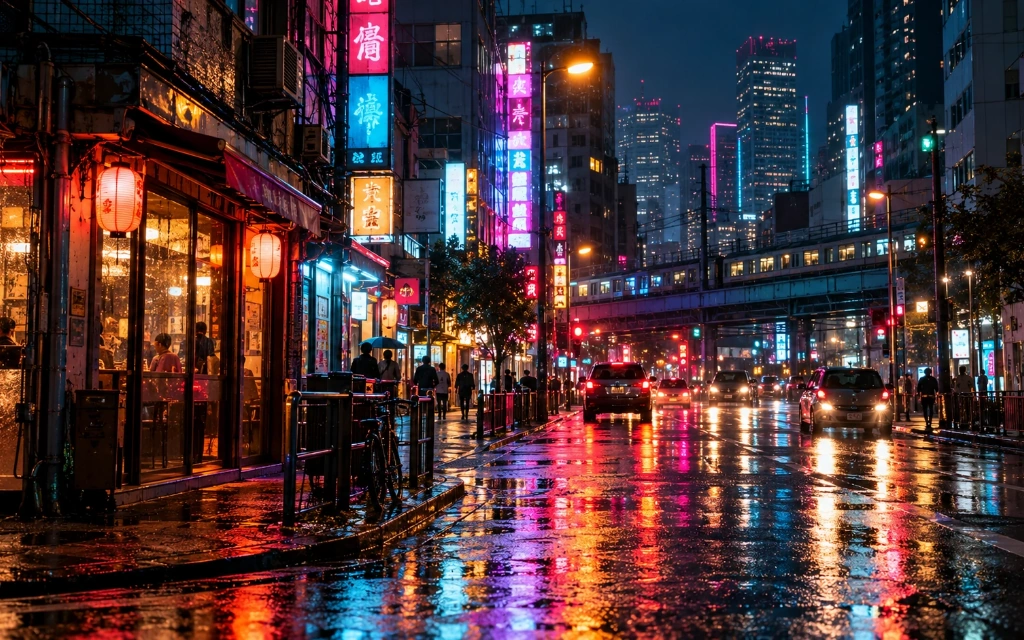
Start with handheld green or C64 colours, compare dithering on and off, and save a profile for one app before expanding to more. Try the illustrative website comparison for a quick visual introduction, then use the app’s live preview for the actual settings.
Read the full setup and troubleshooting guide · Explore CRT masks and renderers
Get 8-Bit Filter